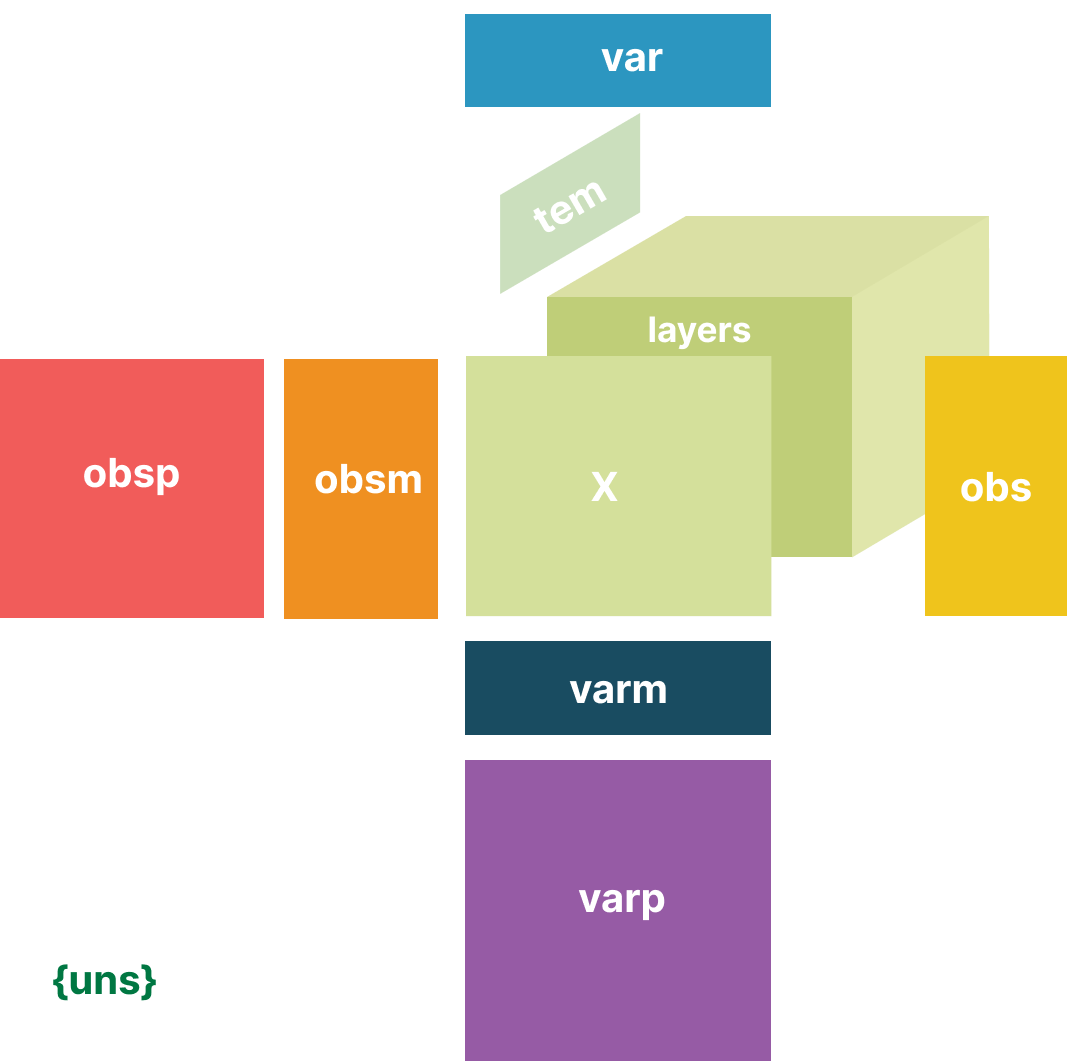
Advanced: Data Management and Sharing with Lamin#
This tutorial demonstrates how to use LaminDB to:
Store EHRData objects in the cloud with full provenance tracking
Share interactive visualizations with collaborators via LaminHub
Note
You don’t need LaminDB to work with ehrdata, and this notebook is OPTIONAL when learning about ehrdata.
Lamin provides functionality to query, trace, and validate datasets and models at scale.
This notebook shows how one aspect of Lamin, its web browser based interface LaminHub, can be leveraged to share interactive EHRData visualizations.
Why Lamin?#
Lamin provides:
📊 Data versioning - Track changes to your datasets over time
🌐 Cloud storage - Share large datasets without email attachments
🔗 Lineage tracking - Understand how datasets are derived
👥 Collaboration - Easy sharing with team members
Prerequisites#
This tutorial builds on earlier tutorials:
Getting Started - Basic EHRData concepts
OMOP Introduction - Loading OMOP data
Interactive Visualization - Vitessce basics
You’ll also need:
A Lamin account (sign up at lamin.ai)
Access to a Lamin instance (or create your own)
Setup#
Install required packages:
# pip install lamindb
Important: Before running this notebook, authenticate with LaminDB from your terminal:
lamin login <your-email>
import ehrdata as ed
import lamindb as ln
import pandas as pd
from pathlib import Path
import duckdb
Connect to a LaminDB instance#
Connect to your LaminDB instance (replace with your instance name):
# Replace 'your-username/your-instance' with your actual instance
ln.connect("theislab/ehr")
→ connected lamindb: theislab/ehr
Part 1: Load and Prepare OMOP Data#
Let’s start by loading some clinical data from the OMOP Common Data Model [RJJ+20] [GAG+00].
# Set up database connection
con = duckdb.connect(":memory:")
ed.dt.mimic_iv_omop(backend_handle=con)

# Load patient visits
edata = ed.io.omop.setup_obs(
    backend_handle=con,
    observation_table="person_visit_occurrence",
    death_table=True,
)

# Load measurement variables
edata = ed.io.omop.setup_variables(
    edata=edata,
    layer="measurements",
    backend_handle=con,
    data_tables=["measurement"],
    data_field_to_keep=["value_as_number"],
    interval_length_number=1,
    interval_length_unit="h",
    num_intervals=24,
    time_precision="datetime",
    enrich_var_with_feature_info=True,
)

print(f"Loaded {edata.n_obs} visits with {edata.n_vars} measurement types")
Loaded 852 visits with 450 measurement types
For text descriptions in the Vitessce visualization, we choose the "concept" name column of .var:
edata.var.set_index("concept_name", inplace=True)
We format datetime columns to strings for storing the EHRData object in zarr:
for column in edata.obs.columns:
    if pd.api.types.is_datetime64_any_dtype(edata.obs[column]):
        edata.obs[column] = edata.obs[column].astype(str)

for column in edata.var.columns:
    if pd.api.types.is_datetime64_any_dtype(edata.var[column]):
        edata.var[column] = edata.var[column].astype(str)
Part 2: Create Visualization and Upload to Lamin#
Now we’ll create an interactive Vitessce visualization and upload it to the instance.
First, let’s create a Vitessce config that will automatically save our data to zarr format:
# Generate Vitessce config and save to zarr (combines both steps!)
zarr_path = Path("mimic_iv_visits.zarr")

vc, artifact = ed.integrations.vitessce.gen_default_config(
    edata,
    zarr_filepath=zarr_path,
    obs_columns=["gender_concept_id", "race_concept_id"],
    layer="measurements",
    timestep=0,
    return_lamin_artifact=True,
)

print(f"✓ Created Vitessce config and saved data to {zarr_path}")
✓ Created Vitessce config and saved data to mimic_iv_visits.zarr
Upload to LaminDB instance#
Now let’s upload this dataset to the instance. This happens in two steps:
Create a LaminDB
Artifactfrom our dataset locally (has been just done bygen_default_configabove)Upload the
Artifactto the remote LaminDB instance
What is a LaminDB Artifact?
A ln.Artifact is LaminDB’s way of tracking data files with rich metadata:
Provenance: Who created it, when, from what sources
Versioning: Automatic tracking of changes
Storage: Seamless upload to cloud storage
Discovery: Easy search and retrieval via metadata tags
What happens during artifact.save()?
Computes a unique hash of your data (for deduplication)
Uploads the file to your configured cloud storage (S3, GCS, etc.)
Registers metadata in the Lamin database
Tracks lineage and relationships to other artifacts
Lets see what the artifact prints to our notebook:
artifact
Artifact(uid='4ozkjwU5dDx5hAov0000', version_tag=None, is_latest=True, key=None, description='MIMIC-IV visits with 24-hour hourly measurements', suffix='.zarr', kind='dataset', otype='AnnData', size=538445, hash='38OfbGgMuqiAFZFoj_64nw', n_files=291, n_observations=None, branch_id=1, space_id=1, storage_id=1, run_id=None, schema_id=None, created_by_id=2, created_at=2026-01-25 16:06:13 UTC, is_locked=False)
and upload it to the instance:
# Upload to cloud storage
artifact.save()

print(f"✓ Uploaded artifact: {artifact.uid}")
print(f"  Cloud URL: {artifact.path.to_url()}")
✓ Uploaded artifact: 4ozkjwU5dDx5hAov0000
  Cloud URL: https://lamin<...>.zarr
We also upload the Vitessce config vc to the instance as follows
from lamindb.integrations import save_vitessce_config

# Save config as an artifact
vc_artifact = save_vitessce_config(
    vc,
    # description="Interactive view of MIMIC-IV OMOP visits",
)

print(f"✓ Saved Vitessce config: {vc_artifact.uid}")
print("Now anyone with access can view this in LaminHub!")
→ VitessceConfig references these artifacts:
Artifact(uid='4ozkjwU5dDx5hAov0000', version_tag=None, is_latest=True, key=None, description='MIMIC-IV visits with 24-hour hourly measurements', suffix='.zarr', kind='dataset', otype='AnnData', size=538445, hash='38OfbGgMuqiAFZFoj_64nw', n_files=291, n_observations=None, branch_id=1, space_id=1, storage_id=1, run_id=None, schema_id=None, created_by_id=2, created_at=2026-01-25 16:06:13 UTC, is_locked=False)
→ returning artifact with same hash: Artifact(uid='DT7KBv1uRxIjyizx0000', version_tag=None, is_latest=True, key=None, description=None, suffix='.vitessce.json', kind='__lamindb_config__', otype=None, size=2189, hash='2mIxbXBQFxB77UBjKGGzjg', n_files=None, n_observations=None, branch_id=1, space_id=1, storage_id=1, run_id=15, schema_id=None, created_by_id=2, created_at=2026-01-25 16:50:37 UTC, is_locked=False); to track this artifact as an input, use: ln.Artifact.get()
→ VitessceConfig: https://lamin.ai/theislab/ehr/artifact/DT7KBv1uRxIjyizx0000
→ Dataset: https://lamin.ai/theislab/ehr/artifact/4ozkjwU5dDx5hAov0000
✓ Saved Vitessce config: DT7KBv1uRxIjyizx0000
Now anyone with access can view this in LaminHub!
Part 3: Explore the Interactive Visualization in the Browser#
Exploring the interactive View in the Browser#
Now, without the need to start up Jupyter notebooks or any coding effort anymore, the visualization is accessible from LaminHub in your browser, looking as such when opening LaminHub:
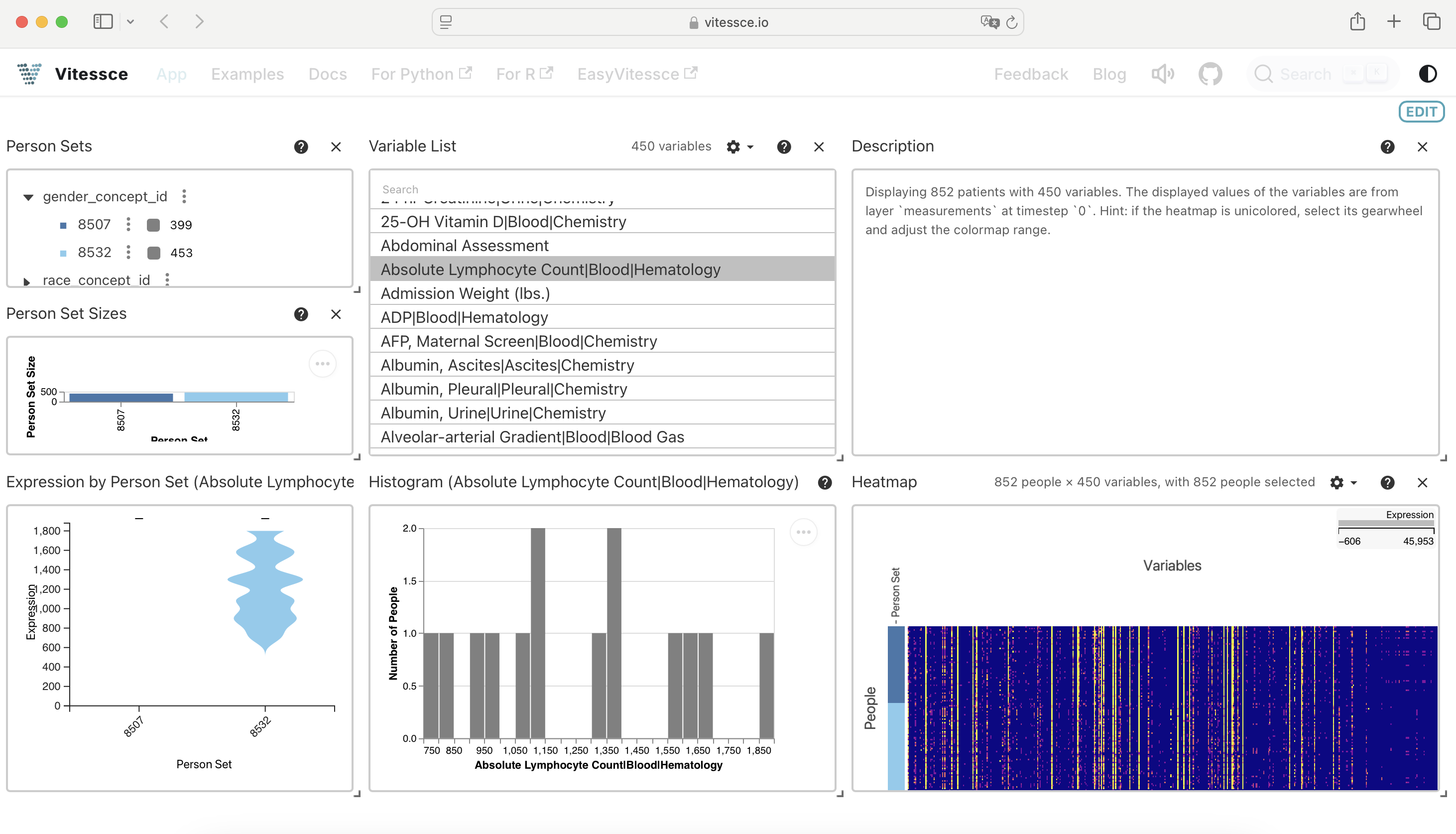
We created the Vitessce in this notebook, and can still explore it here; however, e.g. collaborators don’t need to run (or understand) this notebook to explore the dataset - a web browser is all that’s required for them now!
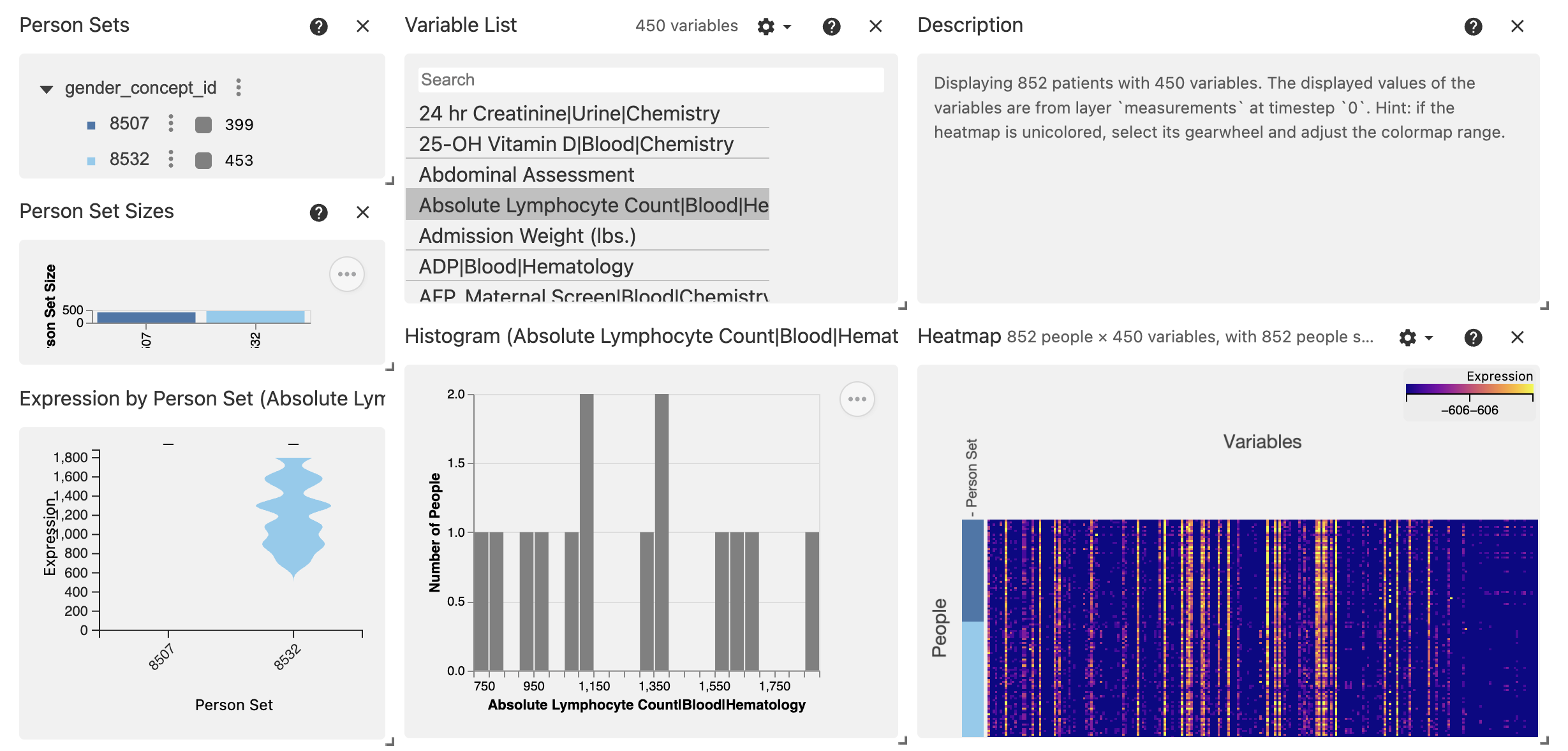
# Preview the Vitessce widget in the notebook
vc.widget()
Next Steps#
Learn more about LaminDB: lamin.ai
Resources#
Lamin Documentation: docs.lamin.ai
Vitessce: vitessce.io
OMOP CDM: ohdsi.github.io/CommonDataModel